Docker Explained: A Complete Beginner's Guide
Master Docker with this complete beginner's guide. Learn how Docker containers, images, Dockerfiles, and Docker Compose work, explore essential commands, understand Docker architecture, and build your first containerized application with practical examples and best practices for modern development.
Introduction
Modern software development involves writing applications that need to run consistently across different operating systems and environments. Developers often encounter the frustrating problem where an application works perfectly on one machine but fails on another because of differences in operating systems, installed software, library versions, or system configurations.
Docker solves this challenge by packaging applications together with everything they need to run into lightweight units called containers. These containers ensure that the application behaves the same way whether it is running on a developer's laptop, a testing server, or a production cloud environment.
Today, Docker has become one of the most important tools in modern DevOps, cloud computing, and software engineering. Companies ranging from startups to enterprises use Docker to simplify development, automate deployments, and improve scalability.
In this guide, you'll learn everything you need to know about Docker - from basic concepts to practical examples.
What is Docker?
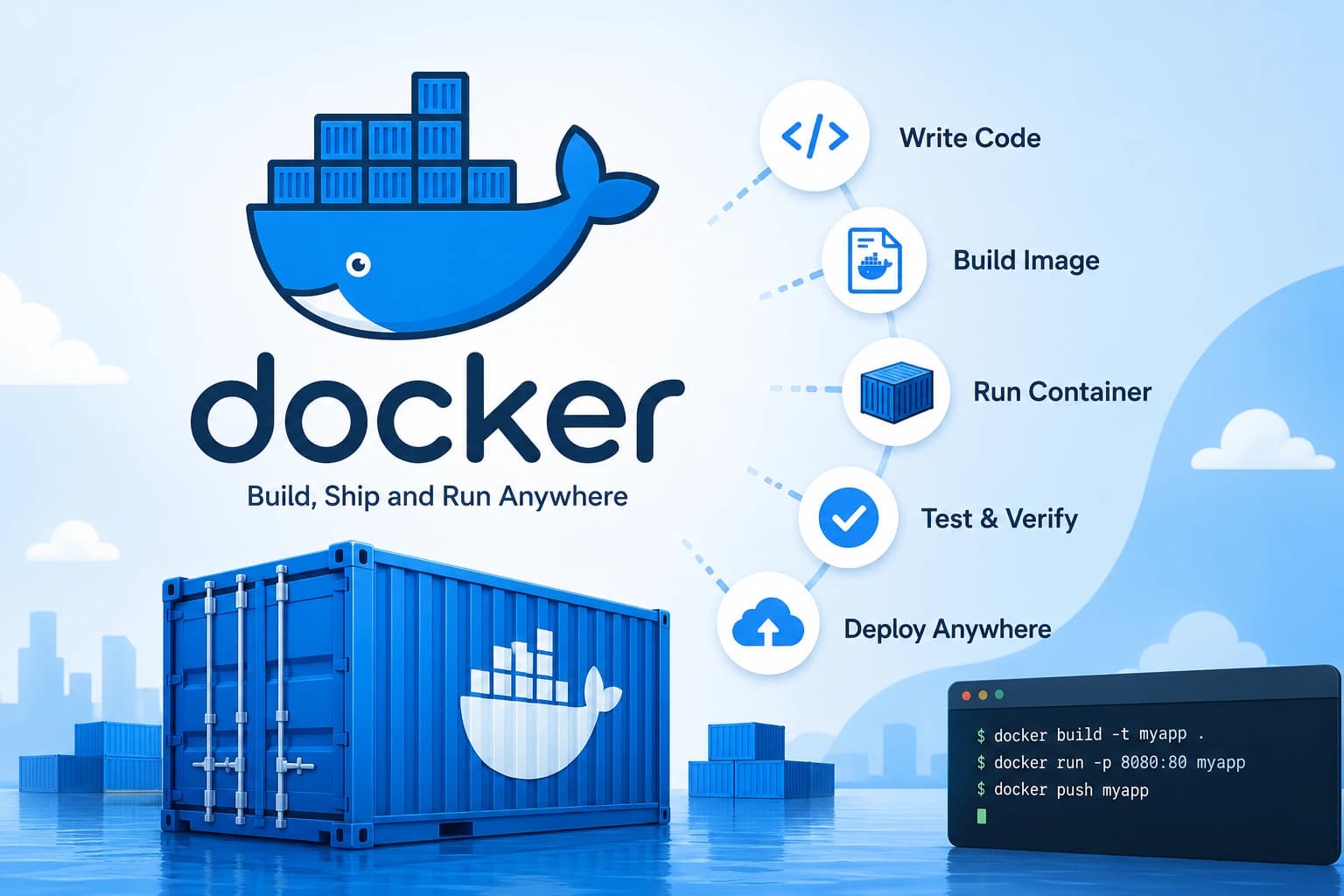
Docker is an open-source platform that allows developers to package applications and all their dependencies into isolated environments called containers.
Instead of installing software directly on a machine, Docker packages everything together:
Application code
Runtime
Libraries
Dependencies
Configuration files
This package can then run consistently on almost any operating system.
Think of Docker as a shipping container for software. Just as shipping containers make transporting goods easy regardless of the vehicle, Docker containers make applications portable across different systems.
Why Was Docker Created?
Before Docker became popular, software developers constantly struggled with environment-related issues.
For example:
Developer A installs:
Node.js 18
MongoDB 6
Redis 7
Ubuntu
Developer B installs:
Node.js 20
MongoDB 7
Redis 6
Windows
Even though both developers are working on the same project, differences in versions or operating systems can cause unexpected bugs.
Docker eliminates these inconsistencies by creating a standardized environment that behaves the same everywhere.
How Docker Works
Docker follows a simple workflow:
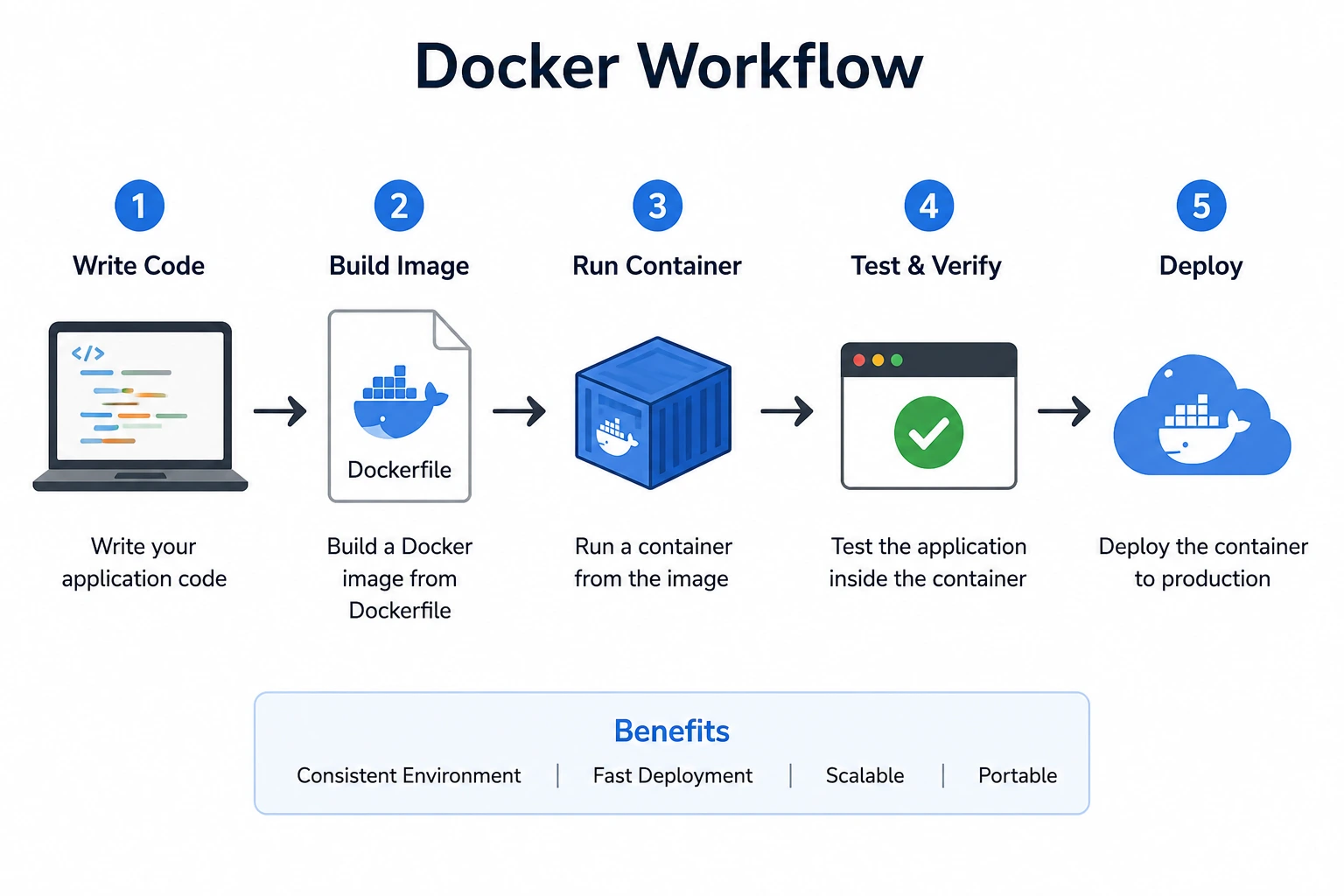
The process is straightforward:
Write a Dockerfile.
Build an image.
Run the image as a container.
Share the image with others.
Docker Architecture
Docker consists of several important components:
Component | Description |
|---|---|
Docker Client | CLI used by developers |
Docker Daemon | Background service |
Docker Engine | Runs containers |
Docker Image | Blueprint |
Docker Container | Running instance |
Docker Hub | Image repository |
Docker Images vs Containers
Many beginners confuse these two concepts.
Docker Image | Docker Container |
|---|---|
Blueprint | Running application |
Read-only | Read-write |
Static | Dynamic |
Can create multiple containers | Runs independently |
Example:
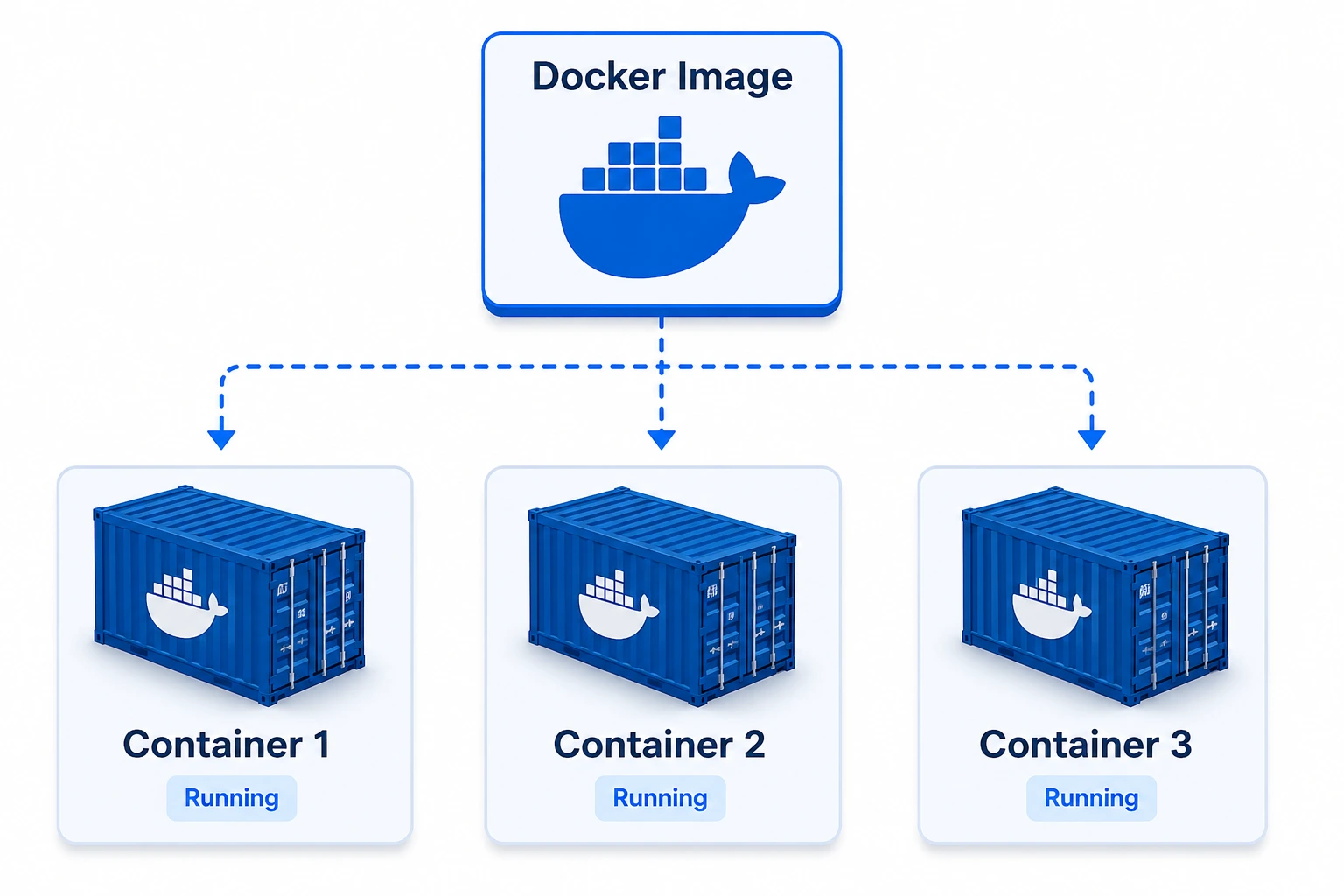
One image can create unlimited containers.
Installing Docker
Windows
Download Docker Desktop.
macOS
Install Docker Desktop.
Linux
Ubuntu:
sudo apt update

sudo apt install docker.io

sudo systemctl start docker

sudo systemctl enable docker
Verify installation:
docker --versionExample output:
Docker version 28.x.xYour First Docker Command
Run:
docker run hello-worldOutput:
Hello from Docker!

This message shows that your installation appears to be working correctly.
Congratulations! You've started your first Docker container.
Understanding Dockerfile
A Dockerfile is simply a text file containing instructions for building an image.
FROM node:20WORKDIR /appCOPY package*.json ./RUN npm installCOPY . .EXPOSE 3000CMD ["npm","start"]Explanation:
FROM selects the base image.
WORKDIR sets the working directory.
COPY copies project files.
RUN executes commands.
EXPOSE opens a port.
CMD starts the application.
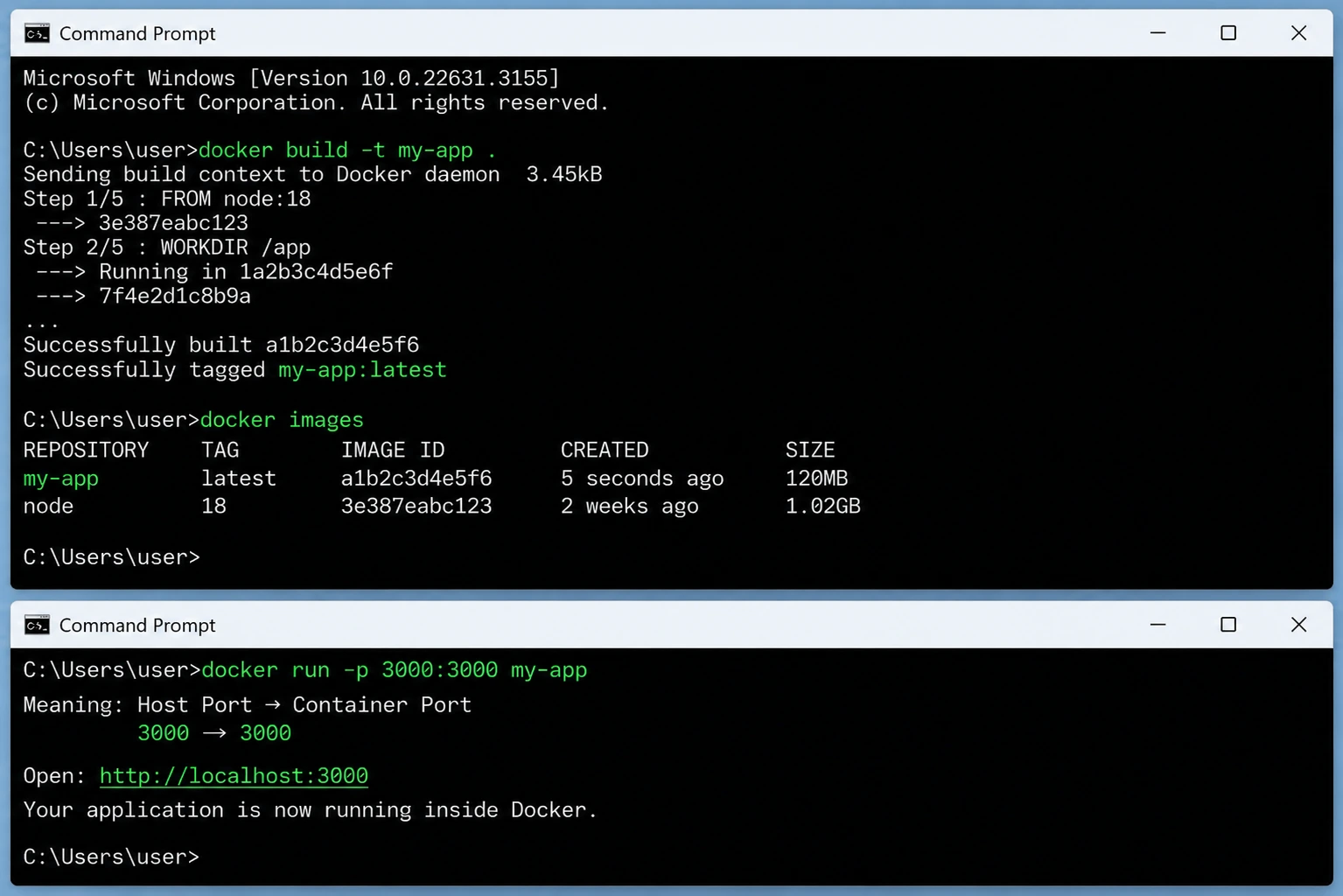
Building and Running a Docker Container on Windows
This image demonstrates the complete Docker workflow using Windows Command Prompt. First, the docker build -t my-app command creates a Docker image from the project’s Dockerfile and tags it as my-app. The docker images command then verifies that the image was created successfully. Finally, docker run -p 3000:3000 my-app starts a container and maps port 3000 on the Windows machine to port 3000 inside the container, making the application accessible at http://localhost:3000.
Useful Docker Commands
Command | Purpose |
|---|---|
docker images | List images |
docker ps | Running containers |
docker ps -a | All containers |
docker build | Build image |
docker run | Run image |
docker stop | Stop container |
docker rm | Delete container |
docker rmi | Delete image |
docker logs | View logs |
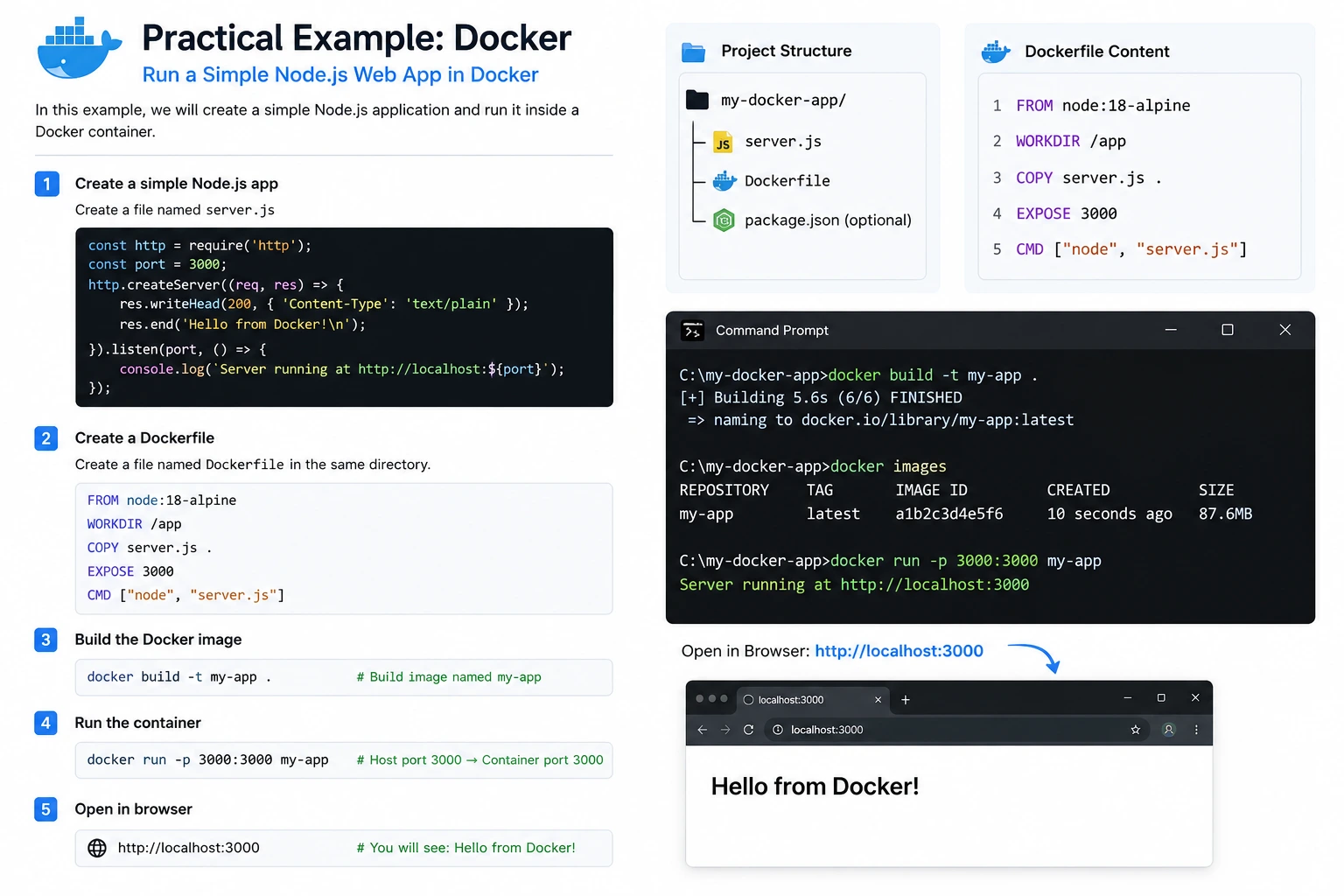
Practical Example: Running a Simple Node.js Application with Docker
Now that you understand the basics of Docker, let's put that knowledge into practice by containerizing a simple Node.js application. This example demonstrates how Docker packages an application, its dependencies, and runtime environment into a single container that can run consistently on any machine.
Step 1: Create a Simple Node.js Application
Start by creating a new project folder and add a file named server.js. This file contains a basic Node.js web server that listens on port 3000 and returns the message "Hello from Docker!" whenever someone visits the application in a browser.
This simple application serves as a great starting point for understanding how Docker works before moving on to larger frameworks such as Express.js, React, or Next.js.
Step 2: Create a Dockerfile
Next, create a file named Dockerfile in the project's root directory. The Dockerfile contains a set of instructions that Docker follows to build the application's image.
In this example, the Dockerfile:
Uses the official Node.js image as the base image.
Sets the working directory inside the container.
Copies the application source code into the container.
Exposes port 3000.
Starts the application using the Node.js runtime.
Think of the Dockerfile as a blueprint that tells Docker exactly how to package your application.
Step 3: Build the Docker Image
After creating the Dockerfile, open Windows Command Prompt, PowerShell, or Windows Terminal, navigate to your project folder, and run:
docker build -t my-app .Here's what this command does:
docker build creates a new Docker image.
-t my-app assigns the image the name my-app.
. tells Docker to use the current directory as the build context.
If the build completes successfully, Docker creates an image containing your Node.js application and all required dependencies.
To verify that the image has been created, run:
docker imagesThe output will display the newly created my-app image along with its tag, image ID, creation date, and size.
Step 4: Run the Docker Container
Once the image has been built, you can launch it as a container using:
docker run -p 3000:3000 my-appThe -p option maps your computer's port 3000 to port 3000 inside the Docker container.
Windows PC (Port 3000)
         ⇩
Docker Container (Port 3000)
This port mapping allows you to access the application running inside Docker from your local machine.
Step 5: View the Application
Open your preferred web browser and navigate to:
http://localhost:3000If everything has been configured correctly, you'll see the message:
Hello from Docker!This confirms that your application is successfully running inside a Docker container instead of directly on your operating system.
What You Learned
By completing this practical example, you've learned how to:
Create a simple Node.js application.
Write a Dockerfile to define the application's environment.
Build a Docker image from your project.
Run the application inside an isolated Docker container.
Access the containerized application through your web browser.
This workflow forms the foundation of modern containerized application development and is the same process developers use to package, test, and deploy applications in production environments.
What is Docker Compose?
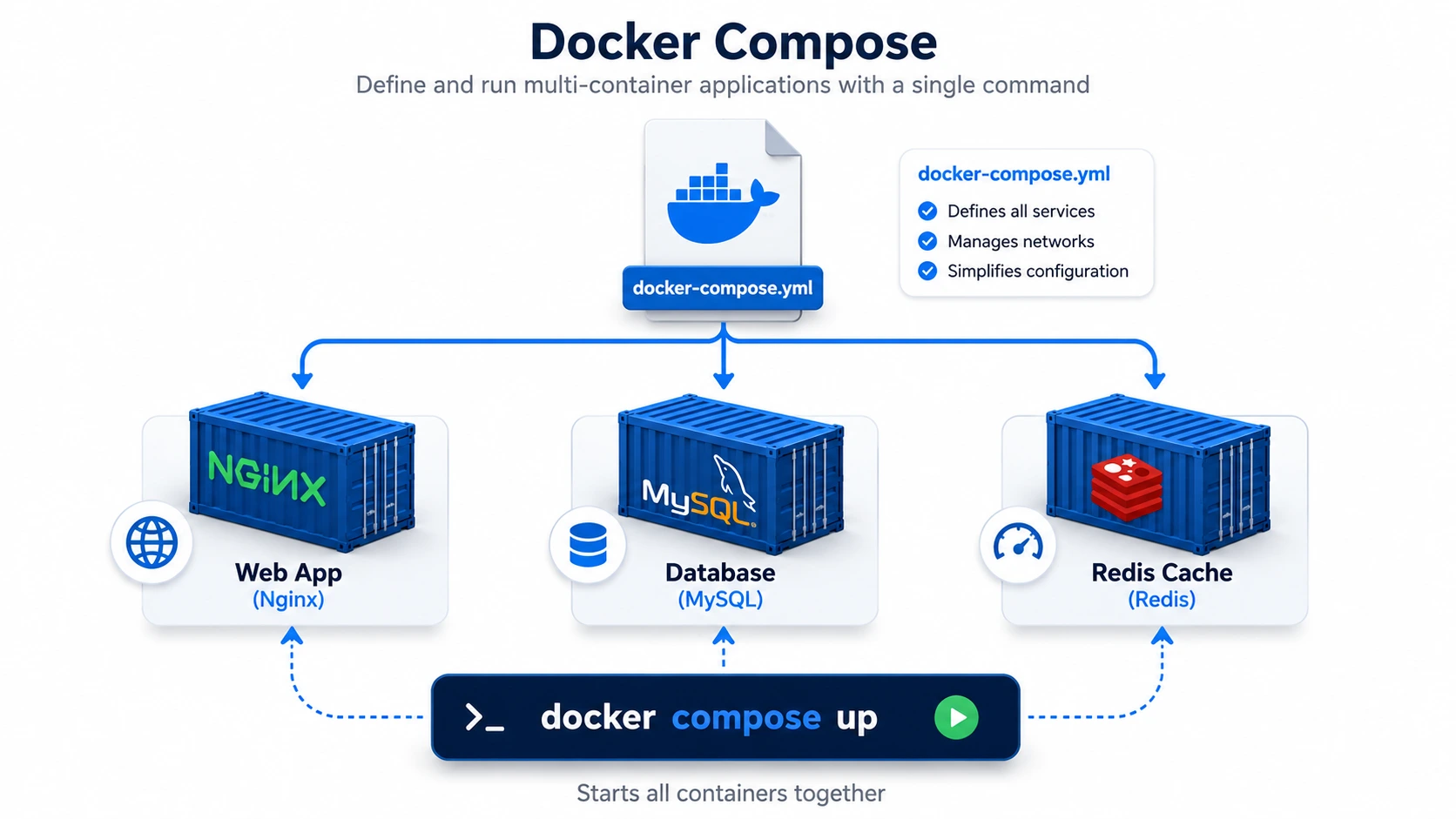
Docker Compose is a tool that helps you run and manage multiple Docker containers using a single configuration file. Instead of starting each container one by one, you can define all your services in a file called docker-compose.yml and launch them together with one command.
For example, if your application needs a web server, a database, and a cache, Docker Compose can start all three services at the same time. This saves time, reduces manual work, and keeps your project organized.
Docker Compose is especially useful during development because it allows developers to create the same environment on any computer. Since all configurations are stored in one file, team members can easily run the project without setting up each service manually.
The basic command to start all services is:
docker compose upThis command reads the docker-compose.yml file, creates the required containers, and starts them automatically.
To stop and remove the running containers, use:
docker compose downKey Features of Docker Compose
Runs multiple Docker containers with one command.
Uses a single docker-compose.yml file for configuration.
Automatically connects containers through a shared network.
Makes development environments consistent across different systems.
Simplifies application setup and management.
Why is Docker Compose Important?
Managing several containers manually can become difficult as an application grows. Docker Compose makes this process simple by allowing you to define everything in one place. It improves productivity, reduces configuration errors, and helps developers build, test, and share applications more efficiently.
Docker Compose is one of the most commonly used tools in Docker because it makes working with multi-container applications simple, organized, and fast.
Docker in CI/CD
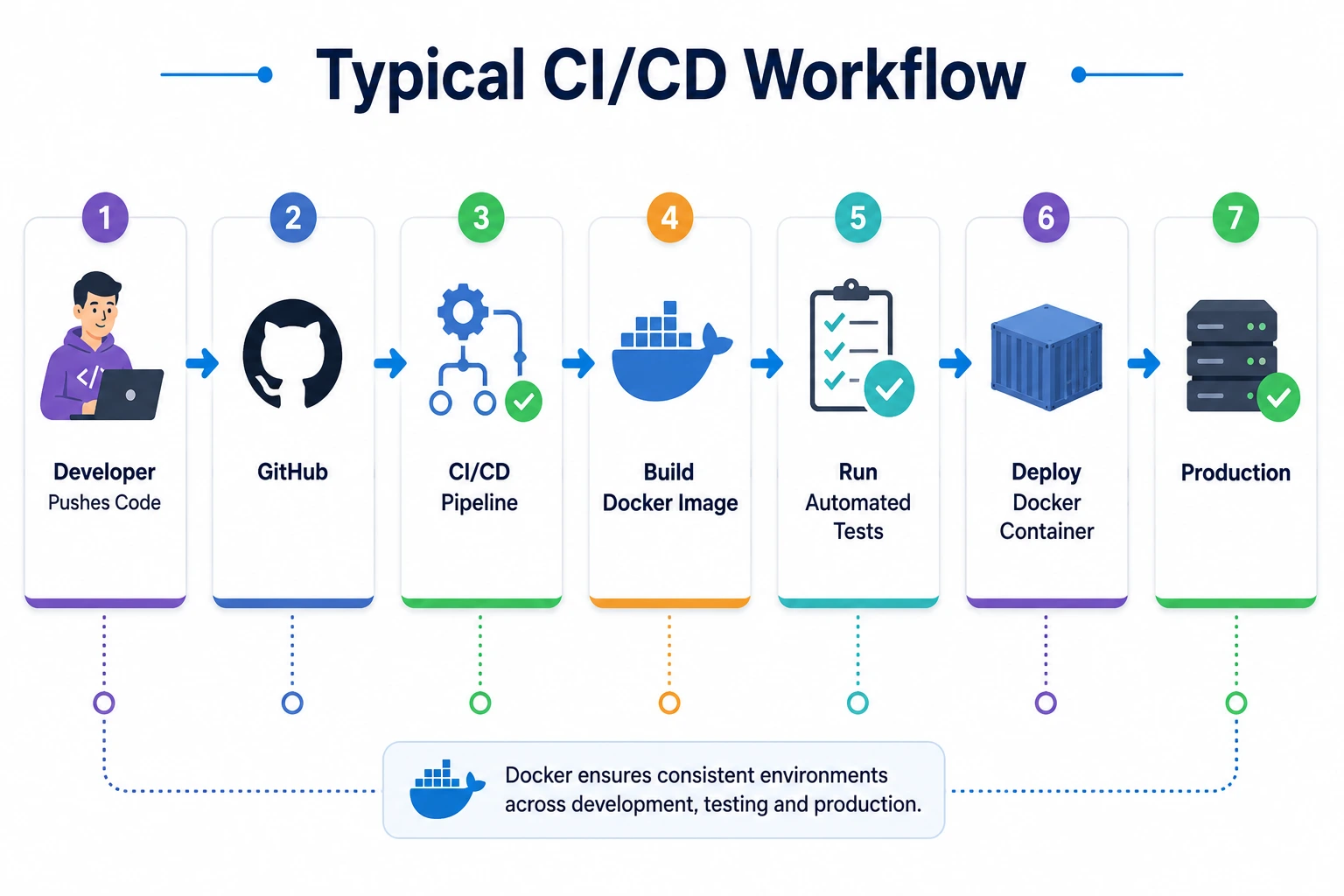
Docker plays an important role in Continuous Integration (CI) and Continuous Deployment (CD). It helps developers ensure that applications run the same way in development, testing, and production environments.
When a developer pushes code to a Git repository such as GitHub, the CI/CD pipeline automatically starts. It builds a Docker image containing the application and its dependencies, runs automated tests to verify everything works correctly, and, if all tests pass, deploys the Docker container to the production server.
Using Docker in CI/CD provides a consistent environment throughout the entire software development lifecycle. This reduces deployment issues, speeds up releases, and makes applications more reliable.
Benefits of Using Docker in CI/CD
Ensures the same environment from development to production.
Reduces "works on my machine" problems.
Automates testing and deployment.
Speeds up software delivery.
Makes deployments more reliable and consistent.
Common Mistakes Beginners Make
Confusing images with containers.
Forgetting to expose application ports.
Copying unnecessary files into images.
Using overly large base images.
Not cleaning up unused containers and images.
Hardcoding secrets inside Dockerfiles.
Why Developers Love Docker
Docker offers several advantages:
Consistent environments across machines.
Faster onboarding for new team members.
Simplified deployments.
Efficient resource utilization compared to virtual machines.
Seamless integration with cloud platforms and CI/CD pipelines.
Improved scalability for microservices architectures.
Conclusion
Docker has transformed modern software development by making applications portable, predictable, and easy to deploy. Whether you're building a small web application or managing a large microservices architecture, Docker simplifies the process of packaging and running software consistently across different environments.
Learning Docker is a valuable investment for developers, DevOps engineers, and anyone involved in building or deploying software. Once you're comfortable with the basics—images, containers, Dockerfiles, and Docker Compose—you'll be well-equipped to tackle more advanced topics such as container orchestration with Kubernetes.
Frequently Asked Questions
Is Docker free?
Yes. Docker offers a free Community Edition for individual developers, with paid plans available for teams and enterprises.
Is Docker the same as a virtual machine?
No. Containers share the host operating system kernel, making them much lighter and faster than traditional virtual machines.
Do I need Docker to learn Kubernetes?
Yes. A solid understanding of Docker and containers is highly recommended before diving into Kubernetes.
Can Docker run on Windows?
Yes. Docker Desktop supports Windows, macOS, and Linux.
Ready to go deeper?
Professional Training
Hands-on, mentor-led training aligned with industry certifications.
About the Author
Sharper every day
Daily tutorials, analysis, and career playbooks across all 12 Xcademia disciplines, straight to your inbox. No spam.